August 5, 2026 · 7 min read
WhatsApp Template Rejected? Reasons and Fixes
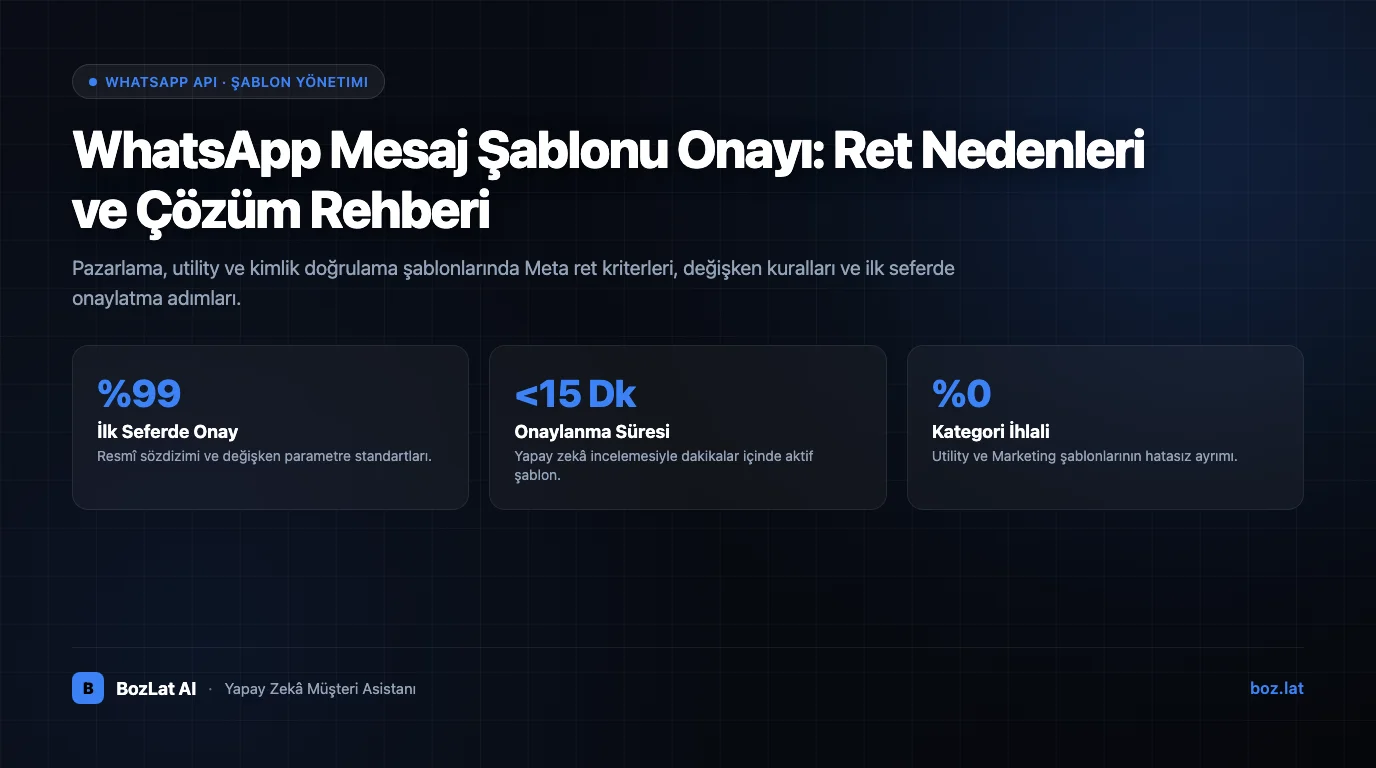
If your WhatsApp message template was rejected, the reason is almost always one of three: the content conflicts with WhatsApp Business policies, the template breaks formatting and variable rules, or the chosen category does not match the actual purpose of the message. A rejection is not a permanent penalty, you can fix the template and resubmit it, and review usually completes quickly.
Why Templates Need Approval
On the WhatsApp Business Platform a business cannot send free-form text whenever it wants. If the customer has not messaged you in the last 24 hours, you can only start the conversation with a pre-approved message template. A template consists of fixed text plus variables in {{1}} form, and becomes usable only after Meta reviews and approves it.
Templates are stored per name and language pair. Turkish and English versions of the same template are reviewed separately; approving one does not approve the other. The review result (approved, rejected, paused) appears in the management panel and can also be delivered to your system through webhooks.
Category Choice: The Invisible Cause of Rejections
Every template is assigned a category, and the category determines both the review criteria and the billing. The wrong category is a rejection reason even when the content is flawless.
| Category | Purpose | Typical example | Common mistake |
|---|---|---|---|
| Marketing | Campaigns, announcements, re-engagement | “The summer collection is 20% off.” | Sending without explicit opt-in |
| Utility | Updates about an existing transaction or request | “Your order has shipped, tracking no: {{1}}” | Slipping a promotional sentence inside |
| Authentication | One-time verification codes | “Your login code is: {{1}}” | Adding promo text or links next to the code |
When the category boundary is crossed, Meta may reject the template or re-categorize it after approval. Re-categorization does not technically block delivery, but it changes billing; we covered how to plan the service-side budget in our WhatsApp chatbot pricing article.
The Most Frequent Rejection Reasons
1) Policy and content violations
- Promoting products or services restricted by the WhatsApp Business Policy (alcohol, tobacco, gambling, weapons, prescription drugs, crypto assets and similar categories).
- Misleading promises and guarantee language: “guaranteed profit”, “cure guaranteed”, “100% results”.
- Artificial urgency and pressure: “Only 5 minutes left, reply now or you lose your slot.”
- Requesting sensitive personal data in the message: national ID, card number, password, or asking the recipient to send a verification code back.
- Unauthorized use of third-party brands, logos, or personal names.
2) Formatting and variable errors
- Starting or ending the template with a variable, “Thanks for {{1}}” is a classic rejection.
- Two variables placed back to back with no fixed text between them: “{{1}} {{2}}”.
- Non-sequential or skipped variable numbering (using {{1}} and {{3}} while never defining {{2}}).
- Not providing sample values; when the reviewer cannot see the final message, the template gets rejected.
- Excessive emoji, all-caps sentences, and piles of unnecessary punctuation.
- Broken, misredirecting, or off-topic URLs.
- Button labels that do not match the message (a “Book Appointment” button on a shipping notification).
3) Purpose and category mismatch
This is the sneakiest reason: a technically perfect, policy-compliant campaign message submitted as Utility. The test is simple, if the message refers to a concrete transaction the customer started (order, appointment, application, payment), it is Utility. If it tries to drive an action, it is Marketing.
Writing Rules That Improve Approval Odds
- Open with fixed text and mention the business name in the first sentence so the recipient recognizes the sender.
- Give every variable a realistic sample value (“{{1}} = Ahmet”, “{{2}} = 14 August 3:30 PM”).
- One purpose per template; never merge a notification with a promotion.
- State the opt-out clearly in marketing templates: “Reply STOP to unsubscribe.”
- If you use links, keep tracking parameters static; only parameterize the trailing path segment.
- Do not resubmit the same content under different names; duplicated templates can be rejected in bulk.
- Read the text out loud before submitting: if it feels like an unwanted message to you, the reviewer will likely feel the same.
What to Do With a Rejected Template
Rejection notices usually carry a reason code (policy violation, formatting error, wrong category). The path forward:
- Read the reason and fix only that part; rewriting everything hides which change actually worked.
- Resubmit under the same template name, renaming detaches the historical performance data.
- For category rejections, correct the category or rewrite the text to fit it; appealing alone rarely works.
- Check each language version separately, a sentence added during translation can be a rejection reason on its own.
- If you keep getting the same reason, simplify: strip links, buttons and emoji, get the bare text approved, then add elements back gradually.
After Approval: Quality Rating and Pausing
Approval is the beginning, not the end. As the template is sent, recipient reactions (blocks, reports, silence) feed its quality signal. If quality drops the template can be paused temporarily and, if the pattern repeats, disabled. So who receives it and how often matters as much as approval; we covered consent collection and segmentation in KVKK-compliant WhatsApp chatbot. To understand where templates sit inside the API, what WhatsApp Business API is is a good starting point.
For the current policy text and template rules, follow Meta's official sources: the WhatsApp Business Platform documentation and the WhatsApp Business Messaging Policy. Rules change over time, so production templates deserve a periodic review.
Automating Template Management
Tracking dozens of templates, two languages and shifting categories by hand becomes unmanageable fast. BozLat AI ties template sending to the customer journey: free-form text while the 24-hour window is open, an appropriate template category when it is closed, and rejection or pause states surfaced in the panel. See scope and plans on our pricing page, and the readiness checklist for preparation steps.
Frequently Asked Questions
Related Articles
6 min read
Multi-Branch Business WhatsApp Routing System
How to route WhatsApp messages based on location and district for multi-branch retail, clinic, or restaurant networks.
6 min read
A Reminder Rhythm That Reduces No-Shows: When, How Often, What to Write
A customer who does not show up means an empty chair. Practical timing, frequency and wording for appointment reminders, plus how to refill a slot that opens up.
6 min read
WhatsApp Quality Rating, Messaging Limits and Bulk Sending
How is WhatsApp quality rating calculated, how do messaging limits scale, and how is bulk messaging sent compliantly? Limit tiers and risk management explained.
Ready to set up an AI assistant for your business?
View Pricing